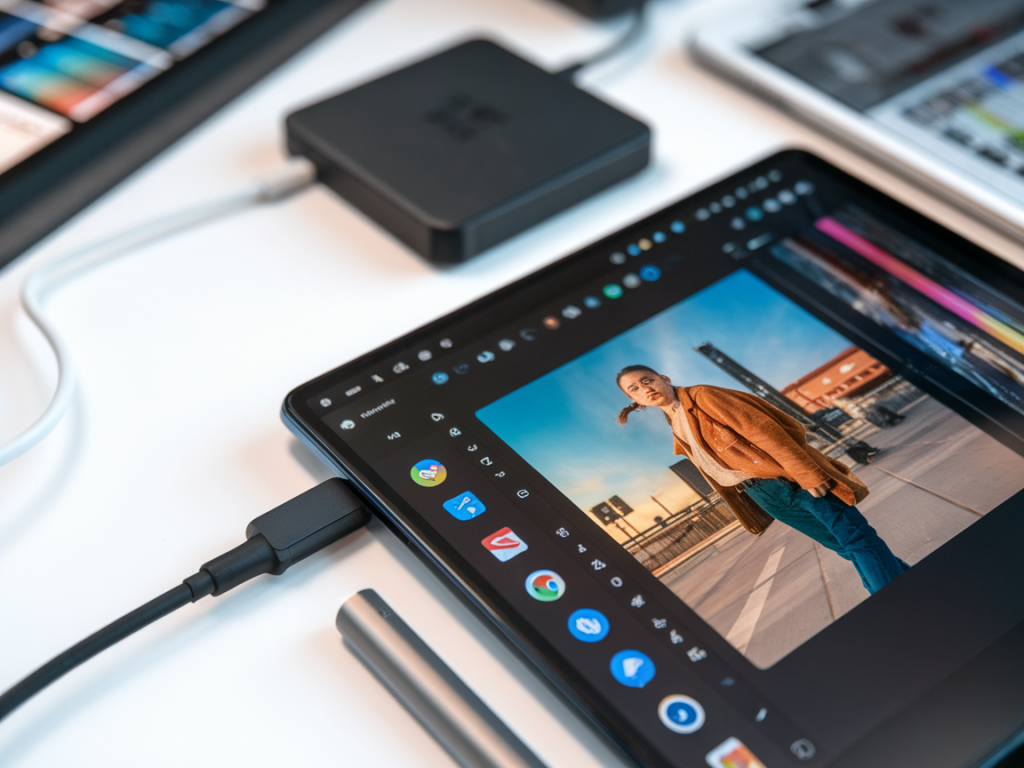
I spent a week carrying a Pixel Fold as my primary photo-editing workstation to see whether a modern foldable can actually replace a laptop for a full, desktop-grade photo workflow on the go. I’m talking RAW capture import from an SD card or camera, tethered shooting, local edits to high-resolution files on external storage, precision brushing with a pen, and final export/upload — all without opening a laptop. The short answer is: you can do an impressive amount, but there are trade-offs you need to accept and workarounds you’ll want to plan for.
What I tested and why it matters
I tried to replicate what I do in the field: import RAW files from an SD card and an external SSD, edit in a mix of mobile and cloud tools, use a pen for local adjustments and retouching, and export high-resolution TIFF/JPEGs. I also tested tethered capture from a Canon R-series camera, color fidelity on the Pixel Fold screen, and two approaches to "desktop-level" tools: native mobile apps (Lightroom Mobile, Snapseed, Photoshop Express) and full desktop apps accessed remotely (RDP/remote Mac/PC with Parsec or Jump Desktop).
Getting files on and off external storage
Out of the box, the Pixel Fold works well with external drives — but there are caveats. Connecting an SSD via USB-C is straightforward: the Files app recognizes exFAT-formatted drives, and you can copy/import RAW files into local storage or work from the drive directly with some apps. That said, not every app supports working directly off an attached volume; some insist on copying files into app-specific storage.
- What worked well: Importing from an SD card via a USB-C reader and copying files to an SSD formatted as exFAT.
- What needs planning: Power — some high-performance NVMe enclosures need bus power or a powered USB hub. Make sure your SSD is exFAT or FAT32; NTFS can be hit-and-miss without third-party drivers.
- Speed: Real-world copy speeds depend on the adapter/port. For bulk transfers I still prefer a small USB-C hub with dedicated power.
Apps and editing capability
There are two viable ways to run a desktop-grade photo workflow on a Pixel Fold:
- Use native Android apps (Lightroom Mobile, Adobe Camera Raw features in Lightroom, Photoshop Express for quick composites, Snapseed for local edits).
- Use the Pixel Fold as a thin client to a real desktop (remote desktop to a Mac/PC running Capture One, Lightroom Classic, or Photoshop).
Lightroom Mobile is the real MVP for local RAW editing. It supports DNG/RAW processing, local catalogs, selective brushing, healing, and tethered capture to a limited set of cameras via USB or Wi‑Fi. The app is mature, syncs with Adobe Creative Cloud if you want catalog continuity, and handles 16-bit-ish RAW edits with very respectable results on mobile processors.
Photoshop Express/Photoshop for Android are useful for quick composites and local retouching, but they don’t match Photoshop desktop for advanced layer work. For actual desktop-level tools (advanced masking, color grading, plug-in support), the remote-desktop route is the only way to get full Photoshop, Capture One, or Lightroom Classic running with the Pixel Fold as your display and input device.
Pen support and precision editing
Google didn’t bundle a pen with the Pixel Fold, but I tried a few active styluses compatible with USB/USI-enabled Android devices. Overall latency and pressure sensitivity were good enough for brush work, retouching, and detailed local adjustments in apps that support stylus input (for example, Lightroom Mobile and a few sketch/retouch apps).
- Advantages: The unfolded display gives a large canvas for dodging/burning and fine masking. Tilt and pressure (where supported) make localized edits feel natural.
- Limitations: Not every mobile app exposes full pen pressure curves. Also, the lack of integrated palm rejection as polished as an S Pen on Samsung devices means a learning curve.
If you need pixel-level spot-healing and multilayer compositing with a pen, remote-desktop connecting to a PC with a Wacom or an Apple Pencil-capable iPad as a sidecar still outperforms the mobile-only setup.
Color accuracy and the Pixel Fold display
The Pixel Fold’s OLED screen is visually pleasing — deep blacks, punchy colors, and a lot of contrast. For professional color-critical work, however, a few things matter:
- The display isn’t color-managed to desktop-calibrator levels by default. You can rely on it for general color and exposure work, but final color-critical decisions (print profiling, soft proofing) should be deferred to a calibrated monitor.
- Viewing conditions (ambient light, reflections on the folded screen) affect perceived contrast and saturation — something to keep in mind when editing outdoors.
For proofing on the go, I used the Pixel Fold to check composition, balance, and general color, then did final grading later on a calibrated desktop. If you consistently need absolute color accuracy in the field, consider a small calibrated reference monitor or a calibrated tablet/laptop.
Multitasking and ergonomics
Pixel Fold’s multitasking (split screen, app pairs, drag-and-drop) is surprisingly effective. I often had Lightroom Mobile on one half and the Files app or a remote desktop client on the other. Photo editing with a pen while referencing capture thumbnails side-by-side felt fluid.
Ergonomically, though, you’ll miss a larger keyboard and a proper trackpad for extended retouching sessions. Portable Bluetooth keyboards and a small mouse are easy to pair, and that combination makes longer edits feasible — but then you’re carrying more gear, which partially defeats the “only the Pixel Fold” premise.
Workflow comparison
| Workflow | Strengths | Weaknesses |
|---|---|---|
| Native mobile apps (Lightroom Mobile, Snapseed) | Fast startup, great RAW processing for quick edits, offline-capable, pen-supported | Limited layer/composite tools, some apps cannot work directly off external drives |
| Remote desktop to full desktop | Access to Capture One/Photoshop/Lightroom Classic with full feature set | Requires reliable connection (Wi‑Fi or mobile hotspot), can introduce latency, battery drain |
Practical tips if you want to use a Pixel Fold for serious on-the-go editing
- Carry a small powered USB-C hub and an exFAT-formatted SSD for fast, reliable file access.
- Use Lightroom Mobile for most RAW edits; it’s the best balance of power and portability on Android.
- If you need Capture One or Photoshop features, set up a remote desktop workflow before you leave: Parsec, Jump Desktop, or a cloud Windows VM with GPU access are workable options.
- Bring a Bluetooth keyboard and compact mouse — editing with touch alone gets fatiguing for long sessions.
- Test styluses ahead of time. Some third-party styli offer lower latency and better palm rejection than others.
- Don’t rely on the Fold for final color-critical work; plan to proof on a calibrated monitor when possible.
In practice, the Pixel Fold is an excellent companion for journalists, travel photographers, and anyone who needs to produce publishable images quickly without a laptop. It can handle serious RAW edits, tethered capture in many cases, and pen-assisted retouching. If your workflow demands advanced layer work, custom plug-ins, or absolute color-critical proofs, the Fold becomes a remote client rather than a full replacement for a desktop. For everything in between — speed edits, client deliveries, captioning, and on-site corrections — it’s surprisingly capable.