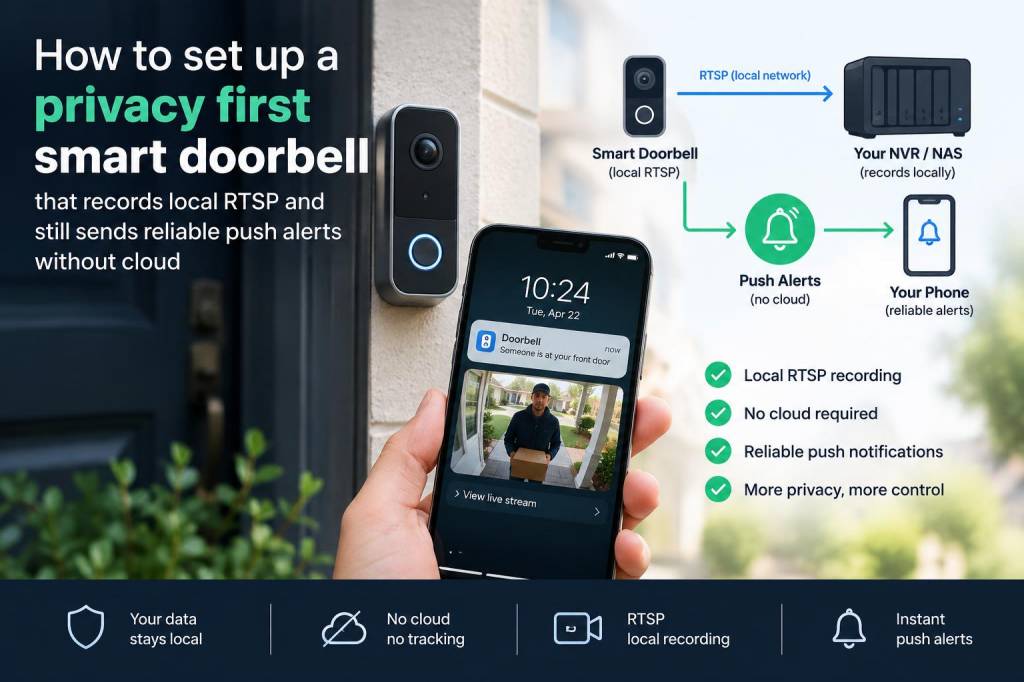
Why I built a privacy-first doorbell that records locally and still pushes alerts
Over the years I’ve tested a lot of “smart” doorbells and the pattern is the same: great convenience, but most rely on vendor cloud services for motion detection, video clips and push alerts. That’s a privacy problem — and a reliability problem when the vendor’s service or my internet flakes. I wanted a setup that keeps footage under my control (local RTSP recording to my NAS/NVR), uses robust local detection, and still gives me fast, reliable push notifications on my phone without funneling everything through a third-party cloud.
What this setup does (and what it doesn’t)
What it does:
- Records continuous or motion-triggered video locally via RTSP to an NVR or NAS.
- Performs local motion or object detection (camera-side or NVR-side) so I don’t send raw video to the cloud.
- Sends fast push alerts to my phone using Home Assistant and its companion app (or an equivalent local push system), including snapshots or short clips served from my LAN.
- Minimizes or disables vendor cloud services where possible.
What it doesn’t do:
- Guarantee battery doorbells will run forever — battery models have limits. I prefer PoE/AC when possible for reliability.
- Completely eliminate all reliance on any external service if you want remote access while away — you’ll need secure remote access or a VPN if you don’t want to use vendor cloud gateways.
Hardware and software I recommend
Hardware that works well with local RTSP recording and is privacy-friendly:
- DoorBird — professional, supports RTSP and local recording, flexible integration.
- Amcrest / Reolink — many models expose RTSP streams and local SD/NAS recording.
- PoE camera doorbells or traditional IP PoE cameras with a wide angle and microphone (wired is more reliable).
- NAS / NVR — Synology Surveillance Station, QNAP, or a dedicated machine running Frigate, Blue Iris or MotionEye.
Local software stacks I use and recommend:
- Frigate (running on Docker with a modest GPU or Coral accelerator): great for local AI object detection, clips and MQTT events.
- Home Assistant: central hub for automations and mobile push notifications via the Home Assistant Companion app.
- Synology Surveillance Station or Blue Iris if you prefer a polished, all-in-one NVR UI. Blue Iris integrates well with Home Assistant via APIs.
Network and security basics
Before installing anything, lock down the network:
- Put cameras on a separate VLAN or guest network with limited access to your LAN.
- Give cameras static IPs or DHCP reservations so your NVR always finds the RTSP stream.
- Disable or avoid cloud features in the camera firmware where possible — turn off “send to cloud” if that’s optional.
- Use strong WPA2/WPA3 Wi‑Fi or preferably wired PoE for reliability.
- Keep NVR and camera firmware up to date, but test updates in a controlled way if you rely on a particular behavior.
- Run NTP and set timezone correctly so timestamps are reliable on recordings.
Step-by-step setup
Below I outline the exact workflow I use. It assumes you have a camera exposing an RTSP stream, a local NVR (Frigate is my go-to), and Home Assistant on the same LAN.
1. Configure the camera
Assign a static IP to the camera, enable RTSP (note the RTSP URL: rtsp://user:pass@camera-ip:port/path), disable cloud upload features, and set sensible video parameters (H.264, 15–25fps for doorbells often sufficient, 1080p or 720p depending on bandwidth).
2. Point your NVR at the RTSP stream
Example for Frigate (Docker): add the camera to your frigate.yml using the RTSP URL. Enable continuous recording or motion clips as you prefer. I use Frigate with object detection (person) so I only trigger meaningful alerts and clips.
Key Frigate settings I use:
- record: enabled with desired retention and pre/post buffers (to capture context)
- detect: person and maybe package
- mqtt: enabled — Frigate publishes events (person_detected, clips) to MQTT, which Home Assistant subscribes to
3. Integrate Frigate (or your NVR) with Home Assistant
Integrate via native Frigate integration or MQTT. Once integrated, you get binary sensors for motion/person detection and media players/snapshots you can use in automations.
Sample automation idea:
| Trigger | Frigate person_detected event or camera motion sensor |
| Condition | Time of day or house presence (only when away / always) |
| Action | Send mobile notification with snapshot URL and optionally short clip |
4. Sending reliable push notifications without vendor cloud
I use the Home Assistant Companion app to receive push notifications. The app works over LAN if the phone is on the home Wi‑Fi. For remote notifications when I’m not on the same network, I have two options:
- Use securely configured remote access to Home Assistant: either a VPN into my home network, or a secure reverse proxy with Let's Encrypt and strong authentication. This keeps everything under my control (no vendor cloud).
- Or use Nabu Casa (Home Assistant Cloud) — it’s a convenience option if you don’t want to maintain remote access yourself; it does route notifications through a third party.
To avoid the cloud entirely but still get remote alerts, I prefer VPN because it keeps the path private and reliable. When a Frigate event fires, Home Assistant creates a notification and attaches a snapshot URL that is either served locally (LAN) or via the VPN tunnel when away.
Example Home Assistant automation (YAML)
Here is a compact snippet that sends a push with a snapshot when Frigate detects a person:
Note: adapt entity names to your setup.
automation: - alias: "Doorbell person alert" trigger: platform: mqtt topic: "frigate/events" condition: - condition: template value_template: "{{ 'person' in trigger.payload }}" action: - service: notify.mobile_app_elise_phone data: title: "Someone at the door" message: "Person detected at the front door" data: attachment: url: "http://FRIGATE_IP:5000/api/events/latest.jpg"Making alerts useful and fast
Raw motion alerts are annoying. I tune detection so Home Assistant only fires on person (or package). Frigate’s object detection reduces false positives (trees, shadows). I also include a one- or two-second prebuffer and short clip in the notification so I can see context before I open the live stream.
Reliability and hardening tips
- Use PoE and wired NVR where possible — it’s far more reliable than Wi‑Fi for a continuously recording camera.
- Give your NVR a UPS so short power drops don’t corrupt recordings.
- Set up a watchdog to restart Frigate/Blue Iris if it becomes unresponsive.
- Preallocate space for video or partition your disk so the OS won’t hog storage and kill recordings.
- Test automations and alert delivery while standing at the door — real world tests reveal race conditions and network hiccups.
Comparing common NVR choices
| Software | Pros | Cons |
|---|---|---|
| Frigate | Local AI detection, MQTT events, efficient with Coral/GPU | Needs setup, some hardware requirements |
| Blue Iris | Feature-rich, Windows-based, strong plugin ecosystem | Windows license, more resource intensive |
| Synology Surveillance | Polished UI, easy NAS integration | Less flexible for AI; license costs for cameras |
Final practical notes from my real installs
On my front porch I use a PoE door camera that exposes RTSP, Frigate on an Intel NUC with a Coral USB TPU for detection, and Home Assistant on a small VM. I disabled the camera’s cloud features, placed it on a camera VLAN, and use a VPN for remote access. Alerts arrive within a second or two of detection, include a 3–5 second clip, and all video lives on my encrypted NAS.
If you want, I can publish the exact config files I use (frigate.yml, sample Home Assistant automations) and a shopping list for a budget vs. pro build. Tell me which parts you already have and I’ll tailor the steps.