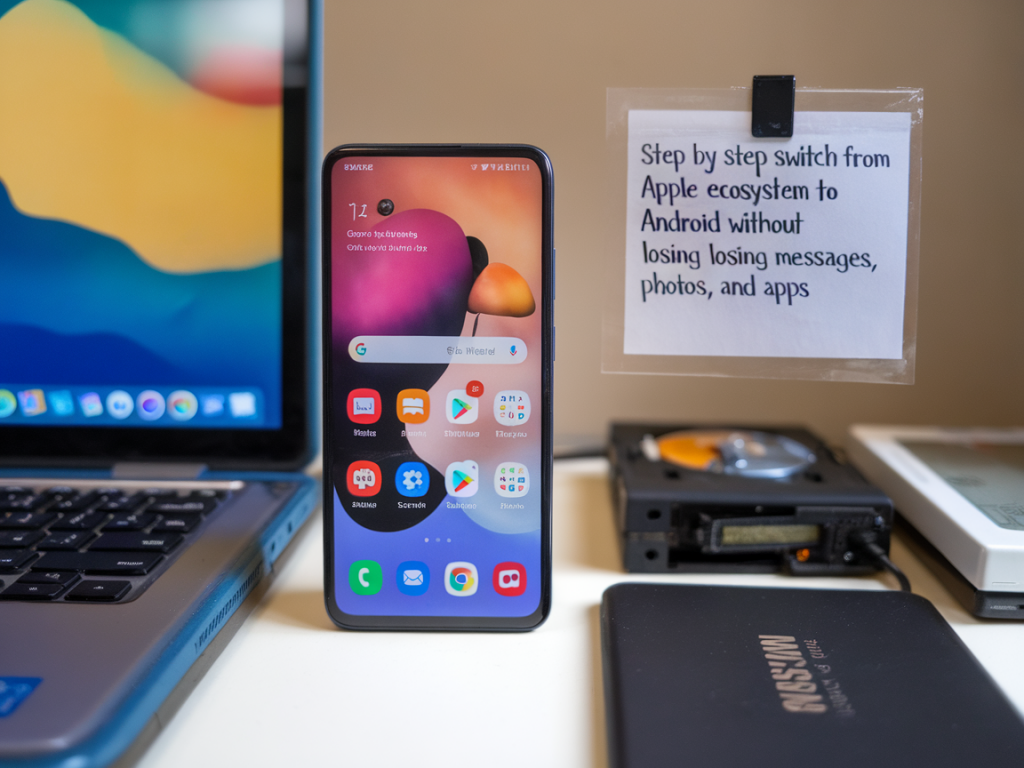
Switching from the Apple ecosystem to Android felt like a small leap and a mini migration project the first time I did it. I remember juggling cables, cloud accounts and the nagging fear of losing years of messages and photos. Over several moves I've refined a repeatable process that keeps things intact — or at least gives you working equivalents quickly — so you can get on with using your new phone instead of noodling over what's missing. Below I walk you through the steps I follow, with practical tips and tools I actually use.
Prepare: checklist before you touch the new Android
Preparation saves time and grief. Do these things first:
Fully charge both devices and have a Lightning-to-USB-C or Lightning-to-USB-A cable handy (depending on the Android phone).Update both phones to the latest OS available — that reduces compatibility issues with transfer tools.Sign in to iCloud and Google so you can access both clouds during the transfer.Back up your iPhone to iCloud and, if possible, to a Mac/PC using Finder/iTunes. That backup is your safety net.Make a note of active subscriptions and two-factor authentication (2FA) apps you rely on (Google Authenticator, Authy, or the built-in iOS OTPs).Step 1 — Messages: keep SMS/iMessage history and stop lost texts
Messages are the trickiest part — people want their message history and they don’t want to miss incoming texts after switching. There are two problems to solve: preserving history, and disabling iMessage so future texts arrive on Android as SMS/RCS.
What I do:
On the iPhone: Settings > Messages and toggle iMessage off. Also go to Settings > FaceTime and turn FaceTime off. This prevents future messages from being stuck in Apple’s system.If you have the iPhone still active with your SIM in it, remove the SIM and insert it into the Android phone only after you disable iMessage. If you already switched SIMs, deregister iMessage at Apple’s deregistration page.Transferring history:
During Android setup many phones (Pixel, Samsung, etc.) offer a "Transfer from iPhone" option. This usually uses a cable to copy SMS/MMS and limited iMessage history to the Messages app on Android. I prefer a wired transfer because it includes attachments and is faster.Samsung users: Samsung Smart Switch is solid — it copies messages, photos, contacts and some app data when you connect phones with a cable or via Smart Switch's wireless option.Other Android phones: Google’s transfer tool (built into Android 12+) will prompt you to copy messages from iPhone when you connect the cable during setup. Follow the on-screen prompts and allow permissions on the iPhone.Note: Full iMessage thread styling (blue bubbles, reactions) won’t carry over — you’ll have standard SMS/MMS/RCS threads. If you need a plain transcript for archiving, tools like iMazing on Mac/PC can export messages to PDF or CSV.
Step 2 — Photos and videos: keep originals and metadata
Photos are the easiest to keep fully intact if you pick the right path.
If you use iCloud Photos: on a desktop go to iCloud.com, download originals (select all, choose Download), then upload to Google Photos or to your Android phone folder. Google Photos has a desktop uploader which is handy for large libraries.If you don’t want a desktop step: install Google Photos on the iPhone, sign in with your Google account, and let it back up. Make sure "Upload size" is set to "Original quality" if you want no compression and you have Google storage available.Sony, Samsung, OnePlus and many manufacturers also offer direct transfer via cable that copies the DCIM folder and preserves metadata. Smart Switch and Android's setup transfer usually bring over camera photos and videos.Tips I use:
Check Google Photos settings after upload: ensure "Back up & sync" is done and all folders are backed up (screenshots, WhatsApp images, etc.).If you use HEIC photos on iPhone and need compatibility, Android newer versions support HEIC, but you can convert to JPEG during upload or use an app to batch convert on the desktop.Step 3 — Contacts, calendars and notes
Contacts and calendar items move smoothly if you use cloud sync.
Sync iPhone contacts to iCloud (Settings > Your Name > iCloud > Contacts). Then go to iCloud.com > Contacts and export vCard. Import that vCard into Google Contacts (contacts.google.com) — they sync automatically to your Android.For calendars: in iCloud Calendar export the calendar file (.ics) and import into Google Calendar (calendar.google.com). Alternatively, enable calendar sync in your iPhone by adding your Google account under Settings > Mail > Accounts and turn on Calendars — this keeps events synced directly.Notes: Apple Notes doesn't have a simple bulk export. If your notes are critical, copy important ones to Gmail or Google Keep manually, or on a Mac drag notes to a folder as PDF. Some third-party tools can export notes in bulk but review privacy before using them.Step 4 — Apps and app data
Apps won't automatically transfer across platforms, but you can re-install equivalents fast.
During Android setup you’ll be offered suggested apps from your iPhone — tap through to install Play Store versions where available.Paid iOS apps need repurchasing in Android versions if they exist; there's no cross-store transfer. Make a list of apps you use and check their Android availability. I keep a short checklist in Notes before the move.App data: most iOS app data doesn't transfer to Android. Some apps with backend accounts (WhatsApp, Evernote, Dropbox, Spotify) store your data in the cloud — sign in and everything is there. For WhatsApp specifically: WhatsApp added an official chat migration tool for Android (usually via cable from iPhone). Follow WhatsApp's migration workflow during setup or check WhatsApp's help center.Step 5 — Passwords and 2FA
Password transfer is the part that makes people anxious. iCloud Keychain doesn’t export directly to Google Password Manager, but you have options.
If you have a Mac: open Safari > Preferences > Passwords, then export passwords (File > Export Passwords). Import that file into a password manager that supports import to both Apple and Google (1Password, Bitwarden), then set up the manager on Android. Be careful with the unencrypted export file — delete it after import.If you rely on iCloud Keychain only on iPhone and don't have a Mac, manually save critical passwords into a password manager app on iPhone (1Password, Bitwarden) and sync to Android.For 2FA: use an authenticator app that supports multi-device (Authy) or transfer codes manually. I prefer Authy because it can sync your 2FA tokens across devices when enabled, which makes switching less painful.Step 6 — Apple Watch, subscriptions, and Apple-only services
Apple Watch needs to be unpaired before you switch phones — unpairing creates a backup that you can restore only to another Apple Watch, so think ahead if you plan to keep using the watch.
Unpair Apple Watch via the Watch app on your iPhone. If you’re moving fully off iOS, you’ll likely sell or store the watch; it doesn’t work with Android.Subscriptions: cancel or switch Apple-specific subscriptions where needed (Apple Arcade, Apple Music — Apple Music has an Android app, so sign into it on Android to retain music library where possible).iCloud: export any files you need from iCloud Drive to Google Drive or another cloud provider. Photos, documents and backups should be manually moved if you plan to stop using iCloud.Troubleshooting and final checks
After the transfer I always run through a quick checklist:
Are contacts complete and searchable?Do message threads have the attachments I expected?Are all photos visible and backed up in Google Photos (check "Back up complete")?Have I disabled iMessage and FaceTime and/or deregistered iMessage?Are my 2FA tokens accessible and functioning on the new device?Do my top apps work and is critical app data present?If something is missing, don’t panic. The iCloud backup and the iPhone you kept are your recovery options. For message recovery, try a different transfer method (cable vs wireless) or use a desktop tool like iMazing to export messages. For photo gaps, check folders in Google Photos and ensure hidden/archived folders weren’t skipped.
This process has become a ritual for me: prepare, transfer, verify. It’s not always perfect because of the platform differences — app purchases and some app data often don’t make the jump — but these steps let me keep the things I care about most: messages, photos, contacts and my ongoing productivity setup. If you tell me which Android phone you’re moving to (Pixel, Samsung, OnePlus, etc.) and whether you have a Mac or PC, I can give a tailored checklist and any model-specific tips.