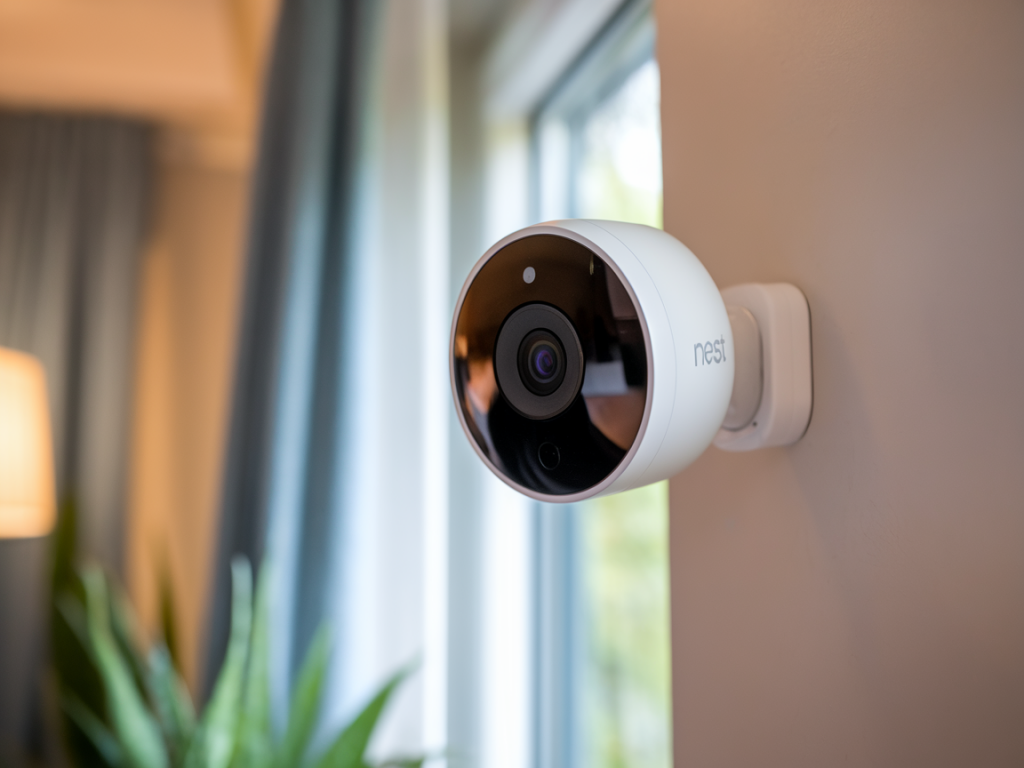
I've spent a lot of time testing smart cameras across brands, and one of the most common — and frustrating — issues people bring to me is the Google Nest camera showing a black screen. I’ve seen this crop up during lab-style tests and in real homes: sometimes it’s a simple connectivity hiccup, sometimes a power problem, and sometimes firmware or app settings are the culprit. In this troubleshooting guide I’ll walk you through practical checks and fixes I use when a Nest camera goes dark, plus tips to prevent the issue from coming back.
Quick checklist: what to try first
If you want to get back to watching your feed quickly, run through these fast checks in this order:
- Restart the Nest camera (power cycle) — unplug, wait 10 seconds, plug back in.
- Check the power supply and cable for visible damage or loose connections.
- Open the Google Home or Nest app and confirm the camera shows as “online.”
- Test your Wi‑Fi: can other devices stream video or load web pages?
- Force-close and reopen the app (or reboot your phone/tablet) to rule out app glitches.
Why the screen is black — the common causes
Before diving into detailed steps, it helps to understand the typical root causes I see:
- Power problems: insufficient or interrupted power is the most frequent cause of a dead camera feed.
- Network issues: unstable Wi‑Fi, weak signal, or blocked ports break the stream.
- App or account problems: outdated or corrupted app data, or account permission issues can prevent video from displaying.
- Camera settings: Night mode, privacy cover, or streaming turned off may make the image appear black.
- Hardware faults: sensor damage, internal board issues, or USB power module failure.
- Firmware bugs: firmware updates gone wrong can temporarily disable the feed until patched.
Step-by-step troubleshooting
I recommend working top-to-bottom. Skip steps you’ve already verified, but don’t skip the basics — they often solve the problem.
1) Confirm the camera is powered
- Check the power adapter and cable: use the original adapter if possible. If you have a multimeter, verify the adapter output. Many Nest cameras expect stable 5V/2A power; inadequate adapters cause black screens or frequent reboots.
- Try a different outlet and a different USB cable. I keep a spare high-quality USB-C or micro-USB cable in my test kit — cables fail far more often than people expect.
- If the camera is battery-powered (some Nest variants are), check battery level in the app and try charging it fully.
2) Reboot the camera and router
Power cycling both the camera and router often resolves transient network or device issues:
- Unplug the camera for 30 seconds, then plug it back in.
- Restart your router (power off for 30 seconds) to clear any NAT or Wi‑Fi radio issues.
- After reboot, wait a minute for the camera to come back online and for the app to reconnect.
3) Verify network signal and bandwidth
A weak Wi‑Fi signal or heavy network congestion will cause a black screen or stalled feed. Here’s how I test it:
- Move your phone to the camera’s location and run a speed test. Video needs both decent download and upload capacity; make sure upload isn’t capped.
- Check the Wi‑Fi band: many cameras work better on 2.4 GHz for range, but 5 GHz provides less interference if the distance is short.
- Temporarily move the camera closer to the router or use a mobile hotspot to determine if Wi‑Fi is the issue.
4) Inspect app settings and permissions
The app itself can sometimes block the feed:
- Open the Google Home or Nest app and confirm the camera is shown as online. If it shows offline, the issue is before streaming (usually power or network).
- Ensure your account has access permissions for that camera. Shared account permissions can be a surprising source of confusion.
- Clear the app cache (Android) or delete and reinstall the app if it’s acting flaky. I’ve had feeds return after a fresh app install when cached data was corrupted.
5) Check camera settings and physical privacy covers
It’s easy to miss settings that intentionally black out the feed.
- Privacy settings: Some Nest models let you disable live streaming while keeping alerts enabled. Check that live stream is enabled in the device settings.
- Auto night mode / infrared: In very low light, the camera uses IR but the app should still show a monochrome image. A completely black feed could indicate the IR LED or sensor is faulty.
- Physical covers: If you’ve got a third-party mount or a privacy shield, ensure it hasn’t shifted to block the lens.
6) Update firmware and app
Firmware problems do happen. I always confirm the camera firmware is up to date:
- In the Nest or Google Home app, look for available device updates and apply them. Firmware updates often include bug fixes for streaming issues.
- Update the app from the App Store or Google Play to ensure compatibility with recent firmware.
7) Test for hardware failure
If the black screen persists after all the above, a hardware fault is increasingly likely:
- Try the camera with a known-good power adapter and cable. If it still shows black, the internal power module or image sensor could be faulty.
- Listen for startup sounds or LED indicators. Some Nest cameras show a status LED; consult the manual for blink codes that indicate hardware errors.
- If you own multiple Nest devices, swap components where applicable (e.g., cable) to isolate the faulty part.
Troubleshooting summary table
| Symptom | Likely cause | Quick fix |
|---|---|---|
| Black screen, camera offline | Power or network | Power cycle camera and router; check adapter and cables |
| Black screen but app shows online | App glitch, permissions, settings | Force-close app, reinstall, verify live-stream enabled |
| Intermittent black frames | Weak Wi‑Fi or bandwidth caps | Improve Wi‑Fi, switch band, test with hotspot |
| Black screen with LED error | Hardware or firmware fault | Update firmware; contact support or arrange repair |
When to contact Google Nest support or seek replacement
If you’ve exhausted the checklist and the camera still shows a black screen, it’s time to escalate. I recommend the following:
- Contact Google Nest support with logs and a description of the steps you’ve taken. If the camera is under warranty they may offer a replacement.
- Prepare diagnostics: note LED behavior, exact model number, firmware version, and the times you’ve tried rebooting. These details speed up support.
- If you’re comfortable opening a device and it’s out of warranty, some components (power boards, USB ports) can be replaced, but proceed only if you have experience — otherwise you may void service options.
Prevention tips I use in my testing and at home
- Use high-quality power adapters and short, shielded cables — they reduce voltage drop and random disconnects.
- Place cameras within reliable Wi‑Fi range or use a dedicated IoT access point to limit interference from phones and streaming devices.
- Keep firmware and apps updated on a regular schedule and subscribe to product update notes from Google Nest.
- Keep a spare camera or spare cable in your kit if you rely on cameras for security — downtime can be costly.
If you want, I can tailor a troubleshooting checklist for your specific Nest model (e.g., Nest Cam Indoor, Nest Cam IQ, Nest Cam with floodlight) — drop the model name and any LED/error messages you see, and I’ll help you dig deeper. At Wcetesting Co (https://www.wcetesting.co.uk) I test these scenarios regularly, so I have a good idea which fixes work fastest in the field.