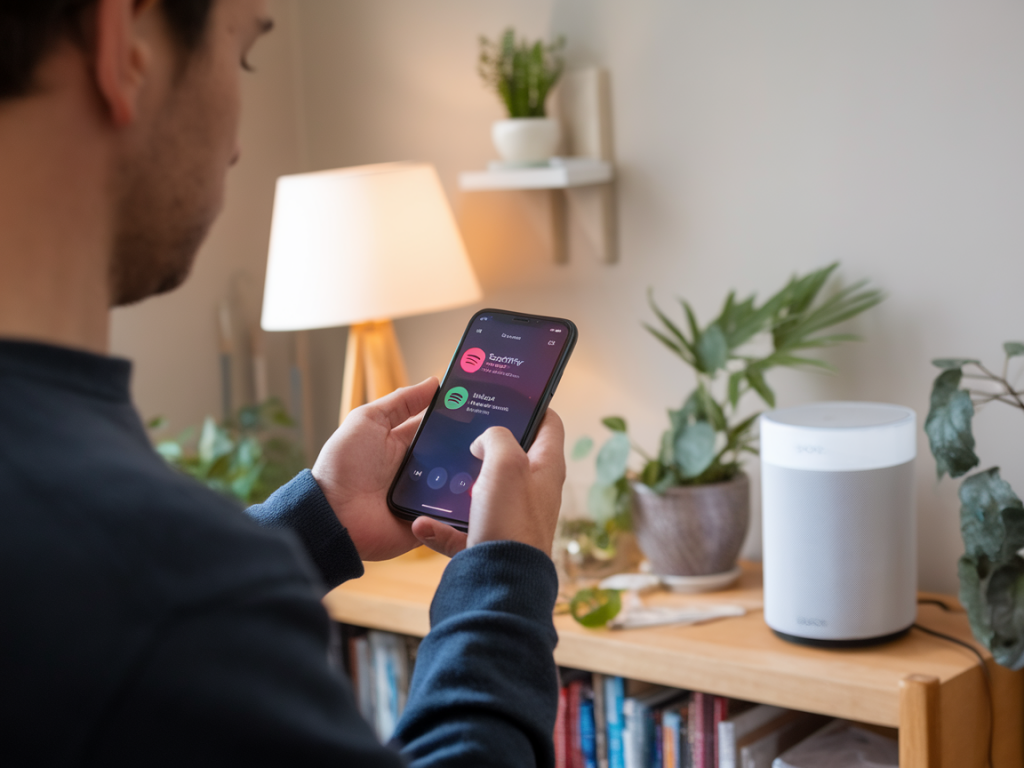
I use a Sonos Roam almost every day — at home, in the garden, and sometimes when I’m away from Wi‑Fi. Balancing the desire for best‑possible sound with a limited mobile data allowance is a challenge: the Roam is a brilliant tiny speaker, but its connection options (Wi‑Fi or Bluetooth) and the limits of mobile networks mean you have to be strategic to get the most from Spotify and any lossless audio you care about. Below I’ll walk through practical steps I use to optimize sound quality while keeping mobile data use under control.
Understand the limits: Sonos Roam, Spotify and lossless audio
Before getting into settings, it helps to be clear about what you can and cannot get with this setup.
Bluetooth vs Wi‑Fi: Roam supports Bluetooth (SBC on Android, AAC on iOS) and Sonos over Wi‑Fi. Bluetooth is convenient on the go but compresses audio — so it’s never "lossless."Spotify quality: Spotify streams Ogg Vorbis up to 320 kbps (labelled "Very High") for Premium users. That’s lossy but very good for most listeners. Spotify does not offer a general lossless tier as of now.True lossless on Sonos: To stream genuine lossless (FLAC, ALAC, 16‑bit/44.1–24‑bit), the Roam needs to be on Wi‑Fi and the service must provide lossless streams (Tidal HiFi/HiFi Plus, Qobuz, Amazon Music HD, Apple Music Lossless where supported). This requires a stable Wi‑Fi connection and sufficient bandwidth.So: if you’re trying to get "lossless" quality to a Roam while conserving mobile data, your options are constrained. You can get the best Spotify sound on Roam by using a Wi‑Fi connection (or a phone hotspot) and Spotify’s highest bitrate for streaming, or — more data‑efficient — download tracks to your phone and play via Bluetooth.
Strategy 1 — Best Spotify sound while avoiding heavy mobile streaming
If you want the best Spotify experience without burning mobile data, I recommend downloading playlists on Wi‑Fi and using Bluetooth playback when you’re out.
Download on Wi‑Fi: On your phone open Spotify, go to the playlist/album you want, and toggle Download. Do this at home or wherever you have unlimited or generous Wi‑Fi. Downloads use no mobile data.Play to Roam via Bluetooth: Pair your phone and Roam over Bluetooth and play the downloaded tracks. Because playback is local on the device, Spotify doesn’t use mobile data and the Roam receives audio via Bluetooth. This preserves your downloads and avoids streaming over mobile.Why this works: Even though Bluetooth is lossy, you’re avoiding mobile data consumption entirely. On small speakers like the Roam the audible difference between a 320 kbps stream and a high‑quality Bluetooth audio path is often small in real listening situations.How to set Spotify for best quality when you must stream on mobile
If you have to stream using mobile data, make the most of it.
Spotify settings: In the Spotify app go to Settings → Audio Quality. For Streaming, choose "Very High." For Downloads, also choose "Very High" so your downloaded files are at the best bitrate when you have Wi‑Fi.Use "Data Saver" intelligently: Spotify's Data Saver reduces streaming bitrates and will save your allowance, but it also reduces quality. Only use it when you absolutely need to stretch data.Monitor mobile data per app: On iOS/Android you can check how much mobile data Spotify uses. If it’s climbing fast, switch to offline downloads or lower the streaming quality.Strategy 2 — True lossless: what to do if you want lossless on a Roam
If lossless is a must, you need Wi‑Fi. The Roam can render lossless only when it receives a lossless stream via Wi‑Fi from a service that supplies it.
Choose a lossless service: Tidal, Qobuz, Amazon Music HD, and Apple Music (where Sonos supports it) can deliver FLAC/ALAC streams. Check current Sonos integrations — some services require S2 and app linking.Use Wi‑Fi or a phone hotspot: If you’re away from home but have a large mobile data allowance, you can create a phone Wi‑Fi hotspot and connect the Roam to it. This lets the Roam stream directly over the hotspot — but remember, lossless streaming uses a lot of data (a single FLAC 16‑bit/44.1 file can be 30–50MB per song on average, much more for hi‑res).Save data by syncing playlists offline: Some lossless services allow offline downloads to their apps or to Sonos (via the Sonos app and supported services). Download at home on Wi‑Fi and play locally on the Roam connected to your phone via Bluetooth (note: Bluetooth playback will defeat the lossless advantage). The only way to hear true lossless is to have the Roam connected via Wi‑Fi while the service streams or serves the file.Practical settings and step‑by‑step tips
Here are concise steps I follow when I’m balancing quality vs data:
At home (prepare): 1) On Wi‑Fi, download your most-played Spotify playlists. 2) If you use a lossless service, download favorite albums for offline listening if the service supports it. 3) Set Spotify and other apps to "Very High" for Downloads.On the move — limited data: Use Bluetooth playback of downloads. Turn off cellular streaming in the relevant apps or enable Data Saver for streaming only in emergencies.If you insist on streaming over mobile and want the best quality: Connect Roam to your phone hotspot and stream from a lossless service — but check your carrier allowance first. Consider limiting this to short sessions or specific tracks to avoid a large bill.Sonos app tips: Keep the Sonos app and firmware updated. The app allows linking and controlling services; some features like direct streaming of integrated lossless services only work reliably when everything’s up to date.Small tweaks that add up
A few additional things I do:
Preload podcasts and audiobooks: They can eat data too — download them at home.Wi‑Fi first: Whenever possible, get the speaker onto a stable Wi‑Fi network for the best fidelity. Sonos is designed around the home network experience.Battery and codec awareness: When you use Bluetooth, battery life and codec limitations affect playback. On iPhone you get AAC which often sounds better than SBC; on Android SBC is common. If you care about fidelity, test which codec your combo uses in a real listening session.Optimizing Spotify and chasing lossless on a Sonos Roam with limited mobile data is mostly about planning: download what you need on Wi‑Fi, use Bluetooth for data‑free playback when possible, and reserve mobile streaming (especially lossless) for times when you truly have the data to spare. With those practices I get excellent day‑to‑day sound without surprising data bills — and I still enjoy lossless listening at home when I want to be picky about audio quality.