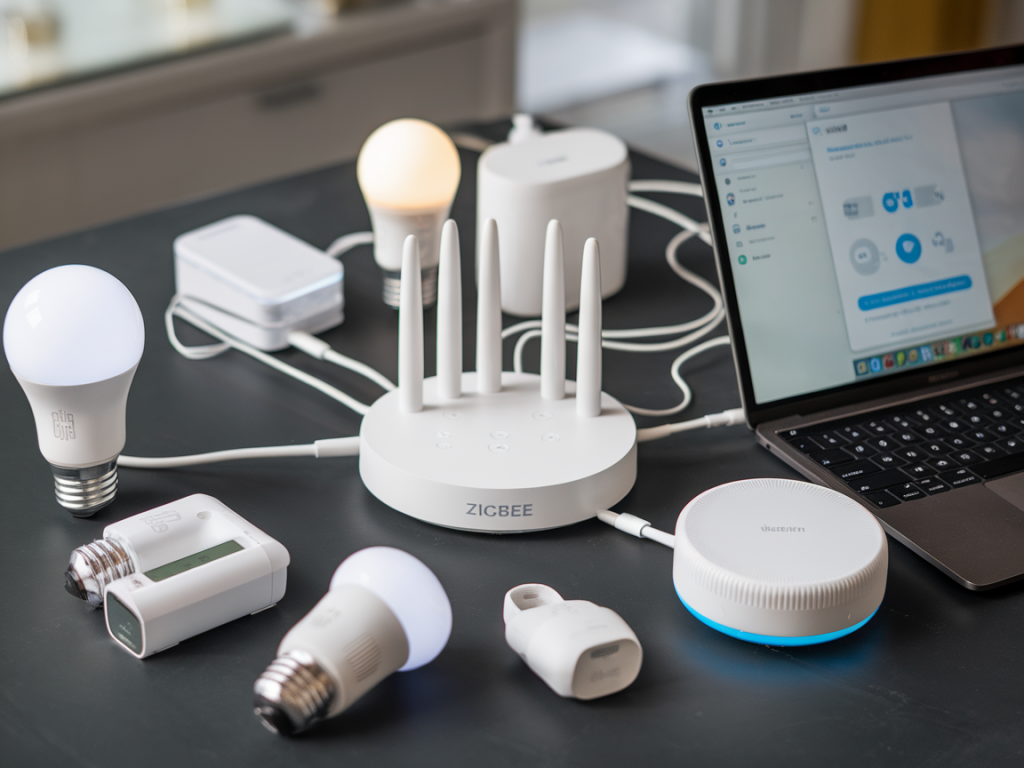
Keeping a mixed Zigbee and Z‑Wave smart home healthy means keeping firmware up to date — but doing that manually across dozens of devices is a chore I actively avoid. Over the years I’ve tested setups on Home Assistant, Hubitat, SmartThings and a couple of vendor hubs, and I’ve learned a few practical patterns for safely enabling automatic firmware updates without bricking battery‑powered sensors or losing automations at the worst possible moment. Below I’ll walk you through how I set up automatic firmware updates for a heterogeneous mesh of Zigbee and Z‑Wave devices, what to watch out for, and specific hub‑level options that actually matter in the real world.
Why automatic updates matter — and why they can be scary
Firmware updates bring security patches, battery life improvements, and new features. For Zigbee and Z‑Wave, they also fix interoperability bugs that can make a sensor drop off the mesh or a lock behave inconsistently. That said, updates have a cost: they can fail, temporarily disable a device during install, or require a coordinator/update controller update first. I always treat updates like surgery: useful but needing a calm environment, backups, and a plan if something goes wrong.
Core principles I follow
- Backup before you enable anything automatic. For Zigbee that might be a backup of your Zigbee coordinator (e.g., deCONZ, Zigbee2MQTT or ZHA backup), for Z‑Wave a network backup (e.g., Hubitat, Vera, Aeotec stick).
- Stagger updates. Don’t update everything at once. I prefer a canary group of 2–5 noncritical devices to evaluate impact for a week.
- Prefer vendor‑tested channels for critical devices. Door locks, garage openers and security sensors deserve extra caution — often I keep them on manual updates unless the vendor specifically recommends automatic OTA.
- Choose quiet hours and avoid battery devices on update day. Battery devices can die mid‑update. Schedule updates for mains‑powered devices first and avoid peak automation windows.
- Monitor after updates. A week of increased logging or a simple device‑state heartbeat helps catch regressions early.
Understand the types of updates
There are three broad update categories to be aware of:
- Coordinator/controller firmware. This is the Zigbee coordinator (ConBee II, Sonoff Zigbee 3.0 dongle, Ember/Thread in some hubs) or the Z‑Wave controller (Aeotec Z‑Stick, USB Z‑Wave controller, or hub internal radio). Update these first and carefully — if the coordinator goes wrong, the whole mesh can be offline.
- Device firmware via OTA. Many Zigbee devices support OTA updates using the coordinator as a bridge (Zigbee OTA), while Z‑Wave uses its own OTA distribution controlled via the primary controller. These updates are per‑device and often large.
- Hub/system updates. Hub OS or controller software updates (Home Assistant OS, Hubitat firmware, SmartThings cloud updates) can change how updates are scheduled and applied. Keep these updated but read release notes for update‑management changes.
Platform‑specific tips I use
Home Assistant (with Zigbee2MQTT, ZHA or deCONZ)
Home Assistant is my go‑to when I want full control. If you run Zigbee2MQTT or ZHA, you can enable OTA updates but I do it selectively:
- Keep a current snapshot of Home Assistant; automate nightly snapshots.
- Update the Zigbee coordinator firmware (e.g., SiLabs, EFR32) from the vendor only when necessary and after a backup of your coordinators’ internal state.
- For Zigbee2MQTT you can enable OTA for specific manufacturers in the config — I whitelist vendors I trust (like Philips Hue, Aqara depending on the device model) and keep battery devices excluded.
- ZHA’s firmware update integration can manage OTA; use the “staged” approach: a small set first, then the rest.
- For Z‑Wave, Home Assistant uses the Z‑Wave JS addon; it supports OTA but only if your controller and the device support it. I create an automation to run updates only between 2–4 AM and notify me via push if any device fails.
Hubitat
Hubitat balances power and safety. It has built‑in Z‑Wave and Zigbee management features and a device‑update UI.
- Hubitat allows you to back up your hub and rule machine apps; take a backup before any mass update.
- Use Hubitat’s Zigbee firmware update capability for supported devices and turn on automatic updates only for noncritical devices.
- For Z‑Wave, Hubitat exposes OTA update controls for supported nodes. I run updates during scheduled maintenance windows and keep locks and alarm panels off automatic updates.
SmartThings and vendor hubs
SmartThings and many commercial vendor hubs (Ring, Philips Hue Bridge) often handle OTA in the cloud and may apply updates without as much user control. I treat these as follows:
- Understand vendor policies — Hue bridges typically manage bulb firmware automatically and are fairly reliable. I trust them for lighting but monitor scenes after major bridge updates.
- If a vendor forces updates, ensure you have device‑level backups where possible and a fallback (spare bulbs, spare lock) for mission‑critical functions.
Practical step‑by‑step workflow I use
Here’s a concrete routine I run whenever I enable or change automatic firmware updates:
- Day −7: Create a full backup/snapshot of the hub and controllers. Export Zigbee coordinator backup if the integration supports it.
- Day −6 to −1: Choose a canary set (3–5 devices) that are noncritical and enable automatic updates for them. Exclude battery devices and locks.
- Day 0: Allow updates to run for canary devices. Log outcomes (success, fail, rollback). Monitor automations for unexpected behavior.
- Day 1–7: If canary devices are stable, expand the whitelist in small batches. Continue nightly snapshots for the first week.
- Ongoing: Keep a maintenance window (weekly or monthly) where noncritical devices are updated en masse if all is well.
What to do when an update fails
Failures happen. My checklist:
- Check logs from the hub and device. Home Assistant, Zigbee2MQTT and Hubitat all retain update logs.
- If a device is bricked or unresponsive, try re‑pairing after a coordinator backup restore. For Zigbee, sometimes a “heal” or rejoin fixes path issues.
- If coordinator firmware fails, revert from the backup and contact the vendor. Keep a spare coordinator/dongle so you can test recovery without bricking your main network.
- Re‑evaluate whether that device type should be on auto updates — I often move problematic models to manual after one failure.
Quick reference table: what I auto‑update
| Device type | Auto‑update policy |
|---|---|
| Mains‑powered bulbs and smart plugs | Usually enabled (whitelisted vendors like Philips Hue, Aqara mains devices) |
| Battery sensors (door/window, temperature) | Generally manual — update only on mains recharger or during maintenance |
| Locks, garage openers | Manual only unless vendor explicitly recommends auto OTA |
| Zigbee/Z‑Wave coordinator | Manual and staged; full backup before any update |
| Hub OS | Auto often OK but read release notes; keep snapshots |
Setting up automatic firmware updates for a mixed Zigbee and Z‑Wave environment is as much about process as it is about technology. With careful backups, a staged rollout, and sensible exclusions (locks and batteries first), you can enjoy the benefits of OTA updates without turning your home into a troubleshooting nightmare. I tweak these rules as new firmware behaves differently or vendors change policies, and I recommend keeping a short, documented update policy for your home — it will save time and stress the first time an update goes sideways.