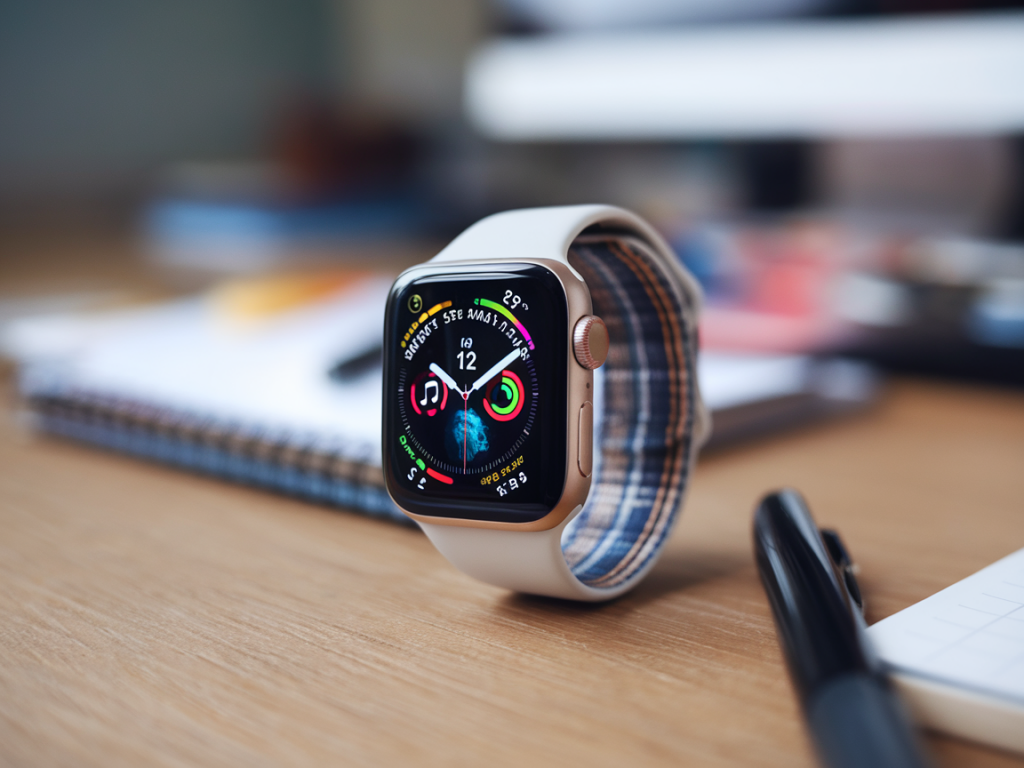
I travel a lot for work and leisure, and one of the constant challenges is keeping my Apple Watch alive for multi-day trips without giving up the features I actually rely on — notifications, step and sleep tracking, occasional GPS for walks, and the ability to make calls when my phone is tucked away. Over several trips and controlled tests in the lab and on the road, I’ve put together a practical checklist and a few tricks that let me stretch Apple Watch battery life to 36–72 hours depending on model and usage, often without resorting to strict “power-conservation mode” that turns the watch into a basic timer.
Understand the trade-offs first
Before changing anything, accept that battery life is a game of trade-offs. The Apple Watch balances sensors, radios (Bluetooth, Wi‑Fi, Cellular), sensors (heart rate, SpO2), and the display. Turning everything off gets you maximum runtime, but you’ll lose the point of wearing a smartwatch. My aim is to keep important features—notifications, basic fitness tracking, music control—and reduce the things that chew power in the background.
Know your hardware and watchOS
Different models behave differently. Series 9 and Ultra 2 have larger batteries and more efficient chips than Series 4–6. Cellular models drain faster when away from the paired iPhone and using LTE for calls/data. watchOS has improved power-saving modes over time; starting around watchOS 9–10 Apple introduced a Low Power Mode that gracefully reduces background activity without fully disabling key features. Learn what your model supports and what your carrier does with eSIM/cellular before you travel.
Pre-trip checklist: prepare the watch and phone
Settings that deliver the biggest wins
These are the tweaks I change before a trip — they’re reversible and preserve the watch’s usefulness.
Fitness and health sensors: tweak sampling
Continuous heart rate, SpO2, and high-frequency GPS are power-hungry. I pick the balance based on my activities:
Practical charging strategies while traveling
You will likely need to charge at least once on trips longer than 48 hours unless you have an Ultra. Here’s how I handle it without interrupting my day.
Apps, faces and complications — pick them wisely
Every complication on your watch face can trigger background updates. For multi-day travel I switch to a minimalist face that still gives me what I need:
When to accept the power-saver mode
I keep Low Power Mode off by default but enable it for flights, long conference days, or hikes where I won’t be able to charge. It reduces functionality (no automatic workouts, reduced background heart rate sampling), but you retain notifications, time, and most manual features. It’s a sensible middle ground between “full-featured” and “power reserve”.
Example experiences from trips
| Trip | Model | Routine | Result |
| Weekend city break | Series 9 | Always-on off, Low Power overnight, Bluetooth only | ~54 hours with sleep tracking and notifications |
| 3-day conference | Cellular SE | Cellular off, brightness low, 15m top-ups with MagSafe bank | ~48 hours with heavy notification volume |
| Multi-day hike | Ultra | GPS workout used sparingly, downloaded offline maps, MagSafe top-up at camp | ~72 hours with careful GPS use |
If you want, I can create a one-page “travel mode” shortcut and a downloadable checklist for your iPhone/Watch so you can flip settings before you leave without hunting through menus. Tell me which watch model you use and the typical trip length, and I’ll tailor the checklist to your needs.