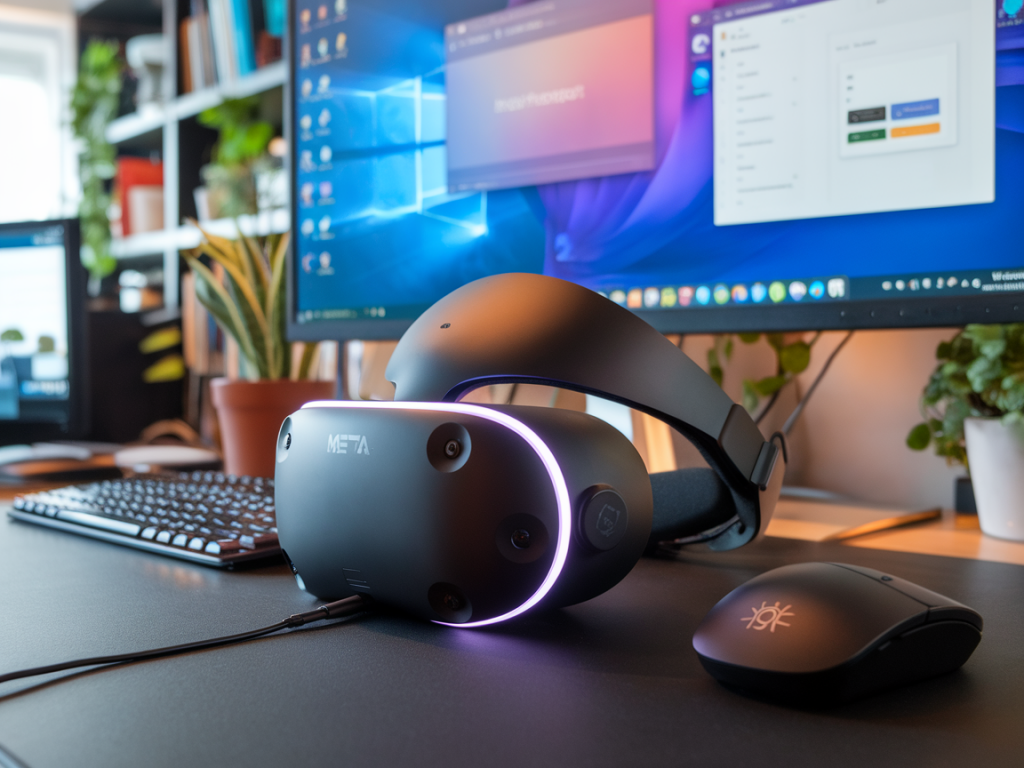
I spent several weeks living part-time in the Meta Quest 3 ecosystem to test a single question that keeps coming up in inboxes and community threads: can the Quest 3 actually replace a laptop for productivity tasks — with a keyboard and desktop-style apps? I wanted to move beyond hype and controlled demos. That meant pairing real mechanical and Bluetooth keyboards, juggling documents, spreadsheets and browser tabs, editing in cloud apps, doing light photo edits and remote-desktop sessions, and using Quest 3 for several-hour stints to judge comfort, battery and focus.
What I tested and why it matters
To make the comparison useful I split testing into practical scenarios people ask about:
- Word processing and long-form typing (Bluetooth and USB-C keyboards)
- Spreadsheet work in Google Sheets and Excel Online
- Web browsing with multiple tabs, research, copy/paste between windows
- Code editing and terminal use (VS Code in a remote desktop)
- Video calls (Zoom/Teams via virtual desktop or Passthrough + browser apps)
- Light image editing in web apps (Canva, Figma, Photoshop via remote desktop)
- File management between cloud drives and local headset storage
I used a range of keyboards: Apple Magic Keyboard (Bluetooth), Logitech K380 (Bluetooth), and a compact wired USB-C mechanical keyboard via adapter. For desktop apps I relied on two approaches that people commonly use: native Quest browser / VR apps and remote access to a real PC using Virtual Desktop and Parsec.
Typing and text input: surprisingly good, with caveats
Typing on Quest 3 is better than most VR headsets I've used. Once you pair a good Bluetooth keyboard and enable the headset's passthrough or Guardian view, you can see your hands and keyboard clearly in mixed-reality. For everyday email and document editing I averaged 70–80% of my usual laptop typing speed with very few errors after a short adjustment.
Key points:
- Bluetooth pairing: Quick and reliable. I had zero disconnects with Apple Magic Keyboard and Logitech K380.
- Latency: Barely noticeable for typing; higher if you're using a remote desktop stream (more on that below).
- Keyboard shortcuts: Most common shortcuts work in native browser apps and some VR apps, but not every desktop app when using the Quest's native environment.
Desktop apps: native browser vs remote desktop
There are two realistic paths to "desktop" productivity on Quest 3:
- Use the built-in browser, Office web apps, Google Workspace and progressive web apps inside the headset.
- Stream your real PC via Virtual Desktop, Parsec or Meta's PC streaming. This gives you full desktop applications (Windows or macOS) inside the headset.
Which is better depends on what you need. For document editing, email, spreadsheets, and web research, the native browser + web apps are a surprisingly usable solution. Web-based Google Docs and Sheets scale well in the virtual space and are responsive. However, when you need full-featured apps — Photoshop, Visual Studio, Figma desktop, heavy Excel macros, or specialized engineering software — streaming from a powerful remote machine is the only way to go.
Performance and multitasking
The Quest 3's hardware is powerful for a standalone headset, but it's still a mobile SoC. That means multitasking with many native browser tabs, embedded media and a few floating windows is fine, but pushing it with heavy webpages and large cloud spreadsheets will cause hiccups. The remote streaming approach offloads that to your PC, which resolves performance limitations at the cost of potential latency.
Ergonomics, comfort and focus
Sitting at a desk with the Quest 3 for focused work is feasible for 1–2 hour sessions but not ideal as a full-day replacement. The headset is lighter than earlier models, and passthrough makes seeing your keyboard and desk easier, but you still have the weight on your face and potential pressure points. I noticed:
- Neck and facial fatigue after long sessions (>2 hours) when I didn’t take breaks.
- Eye strain if I tried to keep very small text readable for long periods; increasing virtual screen size helps but reduces perceived sharpness.
- Great focus: the isolation can reduce office distractions, which is a productivity win for certain tasks.
Battery life and practical workflows
Using the Quest 3 for productivity drains the battery faster than casual gaming or media. Expect 2–3 hours of active typing and multiple browser windows on a single charge. Using wired USB-C for a keyboard and charging simultaneously or using an external battery bank fixes this, but it reduces mobility. If you stream your PC, the heavy lifting is done elsewhere but the headset still needs power for display and wireless streaming.
File management, copy/paste and interoperability
File handling is a mixed bag. In the native browser you can access cloud storage (Google Drive, OneDrive) fine, but dragging files between apps is not as smooth as on a laptop. Copy/paste mostly works between apps in the native environment, but clipboard behaviour can get quirky when switching between native apps and streamed desktop sessions. Using cloud-first workflows (Docs, Sheets, Figma, Notion) is the path of least friction.
Video calls and collaboration
Video conferencing inside Quest 3 is workable but not perfect. Native browser versions of Zoom and Teams function, and streamed desktop gives you the full app. Using passthrough to show your real desktop and webcam is possible via third-party tools, but the overall experience is less natural than a laptop webcam for prolonged meetings. Audio quality and microphone performance are fine for quick meetings.
Security and privacy considerations
Using a headset for sensitive work adds a few considerations: shared-space privacy (others may see you wearing the headset), login and authentication flows (WebAuthn and two-factor work but can be clunkier), and ensuring your remote desktop connection is secure with a strong password and VPN when accessing corporate resources.
Quick pros and cons (at a glance)
| Pros | Cons |
|---|---|
|
|
Who should consider using Quest 3 as a laptop replacement?
If you are mobile, rely mainly on cloud apps (Google Workspace, Office 365 web, Notion, Slack), and want a highly focused environment for 1–3 hour work blocks, Quest 3 can replace a laptop for many tasks. It's also an excellent secondary device for on-the-road remote work when paired with a powerful PC for streaming.
However, if your work depends on specialised desktop software, extended typing sessions, precise colour-accurate editing, or you need a traditional ergonomic setup for full-day productivity, the Quest 3 is better viewed as a complementary tool rather than a daily driver replacement.
I documented the test setups and practical tips on Wcetesting Co (https://www.wcetesting.co.uk) while I was testing — I wrote step-by-step pairing instructions, recommended keyboards, and the best remote streaming setups that worked consistently for me. If you want specifics on any configuration — best low-latency settings for Virtual Desktop, a list of keyboards that pair flawlessly, or how to set up a seamless cloud-first workflow — tell me which scenario you care about and I’ll walk you through it.