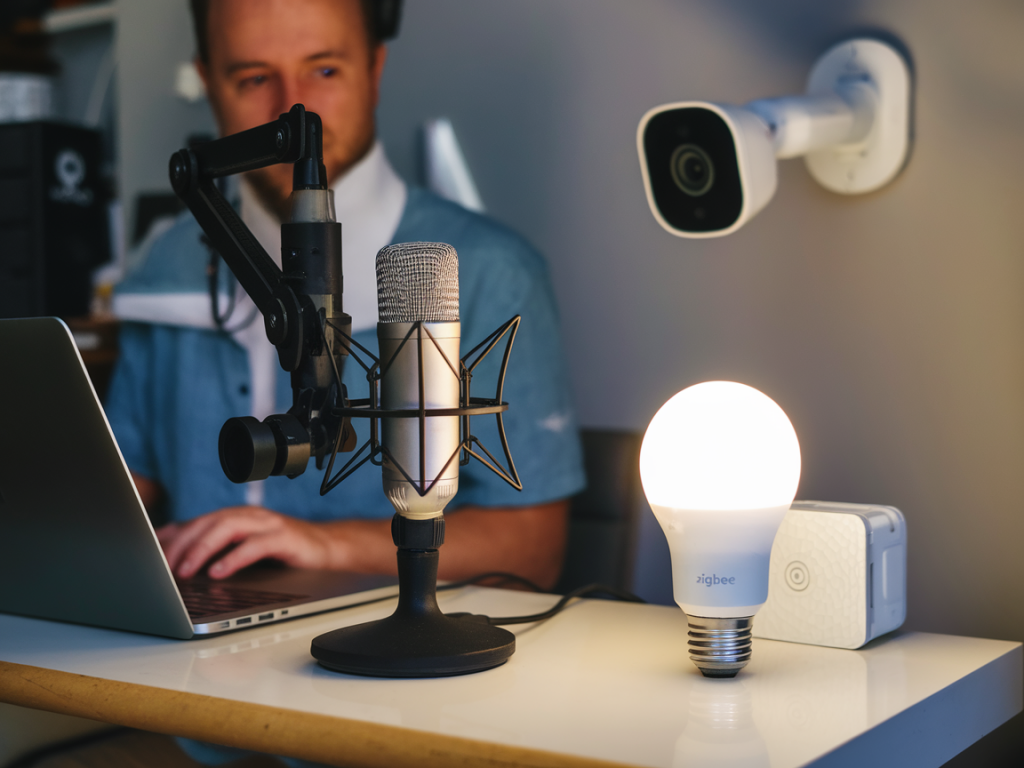
I’m going to walk you through how I built a fully local smart home voice assistant that controls Zigbee lights while keeping cameras and other sensitive devices offline. This isn’t about a single-brand “plug-and-play” solution — it’s about combining reliable open-source pieces so the voice assistant runs in your home, on your network, and doesn’t leak audio, camera streams, or device telemetry to the cloud.
Why I picked this architecture
I wanted three things: reliable control of Zigbee lights, responsive voice interaction without cloud speech recognition, and cameras that never leave my local network. For me, the best balance was Home Assistant as the central automation hub, a USB Zigbee coordinator (ConBee II or Sonoff Zigbee 3.0) to talk to bulbs, and Rhasspy as the local speech-to-intent stack. Rhasspy handles wake words, speech-to-text, and intent parsing locally; Home Assistant runs automations and maintains your device entities. For offline TTS I use an on-premises solution (e.g., Pico TTS or Coqui) so the assistant can reply without contacting external services.
What you’ll need (hardware & software)
Below is the hardware and software I used. You can substitute similar items depending on budget and availability.
| Hardware | Notes |
| Raspberry Pi 4 (4GB+) or Intel NUC | Runs Home Assistant OS or Home Assistant Container. Use decent SD/SSD for reliability. |
| USB Zigbee coordinator (ConBee II or Sonoff Zigbee 3.0) | ConBee II is very reliable; Sonoff Zigbee 3.0 USB dongle (with Zigbee2MQTT) is low-cost and good. |
| Microphone + speaker | USB microphone (e.g., Blue Snowball) or USB sound card + analog mic; a small speaker for TTS. |
| Optional second Raspberry Pi | Run Rhasspy on a separate Pi for isolation, or use Docker on same host. |
| Zigbee lights | Philips Hue, Ikea TRÅDFRI, Sengled, etc. Zigbee bulbs and plugs pair to coordinator. |
| Local storage (NAS/SSD) | Store camera video locally if you use cameras; keep backups. |
Software stack
- Home Assistant (Home Assistant OS or Container)
- Rhasspy (Docker or dedicated Pi) for offline voice/NLU
- Zigbee integration: ZHA (built into HA) or Zigbee2MQTT (Docker add-on) — I prefer Zigbee2MQTT for broader device support
- MQTT broker (Mosquitto) — local only
- Local TTS: Coqui TTS (on-device), eSpeak NG, or Pico TTS
- Optional Frigate for local camera processing (object detection) — runs on Docker with GPU or CPU
Step 1 — Prepare your Home Assistant host
I installed Home Assistant OS on a Raspberry Pi 4 using the official image. If you prefer more horsepower, a small Intel NUC running Home Assistant Supervised is great. The main goal is having Home Assistant with add-on support and an accessible UI at http://homeassistant.local:8123.
Once installed, secure it: create a strong account, enable HTTPS with a local Cert (or use your router to reverse-proxy), and disable any Cloud integrations you don’t need. Don’t sign in to HA cloud if you want strict local-only behavior.
Step 2 — Set up Zigbee coordinator and pair lights
I plugged the ConBee II into the Home Assistant host and installed either the ZHA integration (recommended for simplicity) or Zigbee2MQTT (if you want MQTT mapping and broader device compatibility).
- For ZHA: In Home Assistant, go to Settings → Devices & Services → Add Integration → ZHA and choose your ConBee/USB serial port.
- For Zigbee2MQTT: Install Mosquitto broker add-on, then Zigbee2MQTT add-on (or run Zigbee2MQTT in Docker). Configure the serial port and MQTT settings in Zigbee2MQTT's configuration.yaml.
Put your Zigbee bulbs into pairing mode and add them. They’ll appear as entities in Home Assistant (light.living_room etc.). Test control from the HA UI to confirm local control works even if the internet is disconnected.
Step 3 — Install an MQTT broker
MQTT is the glue between Rhasspy and Home Assistant when using intent/voice-based automations. In Home Assistant add-ons, I installed Mosquitto broker and set a strong username/password. Configure Home Assistant to use the local MQTT by adding the integration and testing publish/subscribe with MQTT Explorer.
Step 4 — Deploy Rhasspy for local speech
Rhasspy is my go-to for fully offline voice. You can install Rhasspy as a Home Assistant add-on (if available) or better: run it in Docker on a separate Pi to isolate audio streams.
- Install Rhasspy Docker image: docker run -d --name rhasspy --restart unless-stopped -p 12101:12101 -v "$HOME/.config/rhasspy/profiles:/profiles" --device /dev/snd:/dev/snd rhasspy/rhasspy:latest --user-profiles /profiles --profile en
- In Rhasspy UI, configure the microphone and speaker (ALSA device or USB).
- Choose the speech-to-text engine: Pocketsphinx or Kaldi are local. For better accuracy, use Vosk (it’s local and high quality) with a downloaded model.
- Configure a wake word: Rhasspy supports Porcupine (Picovoice) for local wake word, or use the built-in Precise/Pocketsphinx options.
- Point Rhasspy to your MQTT broker and choose the “Home Assistant” intent handling mode so recognized intents get sent to Home Assistant via MQTT.
Example Rhasspy MQTT settings:
mqtt: broker: mqtt://homeassistant.local, username: rhasspy, password: strongpassword
Step 5 — Define voice intents and map to HA automations
I create simple intents in Rhasspy like "turn_on_light", "set_light_brightness", or "toggle_kitchen". An example intent file:
turn_on_light
turn on the {room} light
switch on {room}
In Rhasspy I map the intent to an MQTT topic that Home Assistant subscribes to, or use Home Assistant’s intent integration with MQTT intent handling. In Home Assistant, I create automations triggered by the intent events:
Automation trigger: platform: mqtt, topic: rhasspy/intent/turn_on_light — then parse the payload to extract the {room} slot and call service light.turn_on with the correct entity_id.
Step 6 — Offline TTS and response synthesis
When a voice command is processed, I want the assistant to speak replies without hitting cloud TTS. Rhasspy can call a local TTS engine. I use Coqui TTS or Pico TTS running locally. Install Coqui in Docker or use the eSpeak NG add-on in Home Assistant for short replies.
Configuration example in Rhasspy: TTS: Coqui endpoint http://coqui:5002/
This allows My Assistant to say "Turning on the living room light" when the automation runs.
Step 7 — Keep cameras fully offline
If you want cameras to never leave your network, do not use cloud-enabled cameras that force a brokered stream. Instead:
- Use RTSP-capable cameras (many Hikvision, Reolink, Amcrest models). Configure them to stream only to local IPs (your NVR or Home Assistant).
- Run Frigate or MotionEye locally to capture and record footage to local storage (NAS/SSD). Frigate can also do local object detection if you want alerts without the cloud.
- In Home Assistant, add the camera as a local entity using the RTSP stream URL. Do not enable cloud upload or offboard any credentials.
- Segment your network: put cameras on a VLAN with access only to your NVR/Home Assistant and block outbound Internet access for that VLAN at the router level.
Security & privacy hardening
I treat the host and network as the trust boundary. Here are the steps I take:
- Put voice assistant components on an internal-only network or VLAN. Allow only the ports they need to communicate (MQTT, Rhasspy HTTP, Home Assistant) and block undesired outbound traffic.
- Disable cloud integrations for devices you want local-only. In Home Assistant, do not link accounts that would send data to vendor clouds.
- Use strong, unique passwords for Home Assistant, MQTT, and camera admin accounts. Prefer certificate-based access for services where possible.
- Keep software updated, but review changelogs — sometimes add-ons change defaults that affect privacy.
- Regularly backup Home Assistant configuration and Rhasspy profiles to local storage (and an encrypted offsite backup if needed).
Troubleshooting tips I’ve learned
- If wake word is unreliable: try a different wake engine (Porcupine often beats Pocketsphinx) and tune mic placement; use a directed microphone or small beamforming USB mic.
- If intents aren’t reaching Home Assistant: check MQTT topics with MQTT Explorer and ensure Rhasspy and HA use the same broker credentials.
- Zigbee connectivity issues: move the coordinator to a USB extension cable and away from Wi‑Fi routers. Use more mains-powered Zigbee routers (plugs) to strengthen mesh for bulbs.
- Camera stream lag: reduce stream resolution or bitrate if CPU is overloaded; consider hardware acceleration for Frigate if doing local detection.
This setup gives you a responsive, privacy-conscious voice assistant that controls Zigbee lights locally and keeps cameras and video data on your LAN. It’s a bit of work up front, but once configured you gain full control and peace of mind knowing audio and video aren’t being handed to a third-party cloud by default.