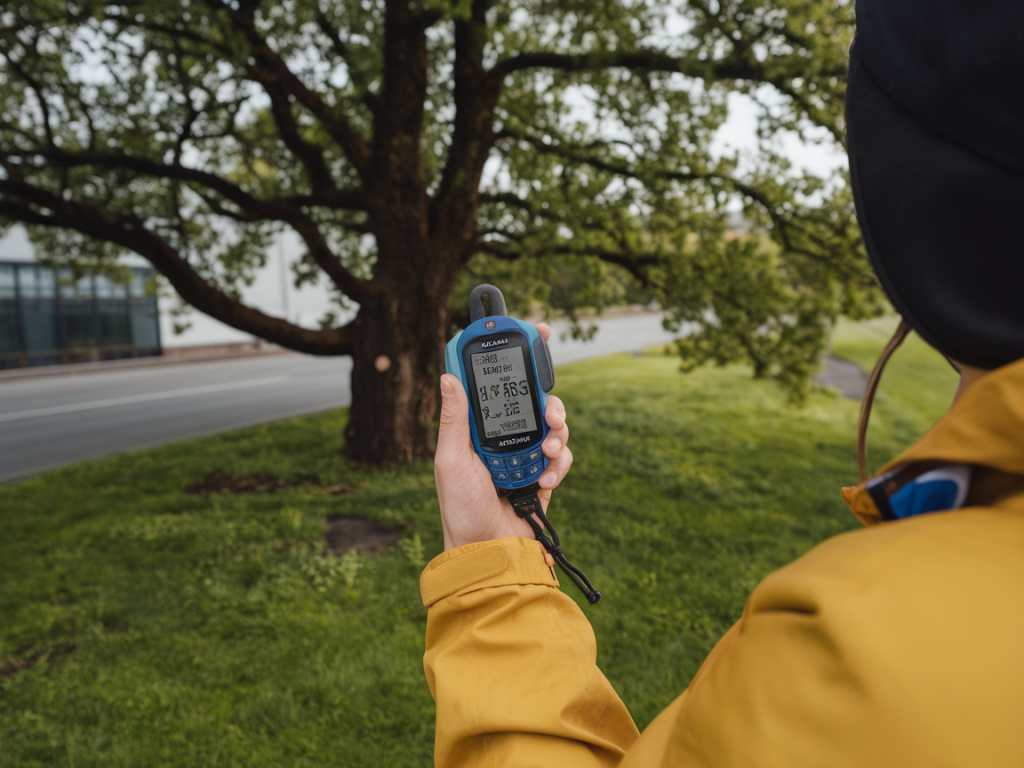
I spend a lot of time testing GPS performance on running devices because distance and pace are only useful if the location data behind them is reliable. Recently I ran a series of real-world checks using a Google Pixel phone and a Garmin running watch so I could show exactly how to calibrate and verify outdoor GPS for running. Below I share the practical steps I use, the settings that matter, what to expect from each device, and how to interpret the data so you can trust your runs and fix common problems.
Why calibration and verification matter
GPS isn't magic—it's a system of satellites, receiver hardware, firmware and software filters. Two different devices can record the same run with noticeably different routes, distances, and pace spikes. I want my tools to reflect reality: if a route is 5.00 km on the ground, that should be reflected in my activity file within a reasonable tolerance. Calibration and verification help you:
Confirm that a device's sensor, antenna and firmware are performing correctlyIdentify environmental causes of inaccuracy (trees, buildings, tunnels)Choose the best settings for steady pace and distance measurementsDiagnose whether discrepancies come from the phone, the watch, or the mapping softwareWhat I test for
When I test outdoor GPS for running I focus on measurable things you can reproduce:
Fix time and satellite count at acquisitionHorizontal dilution of precision (HDOP) where availableRoute fidelity vs. a mapped reference (straight lines or known paths)Total distance and lap splitsPace smoothing and spikes caused by filteringBehavior in challenging environments: urban canyons, tree-lined trails, and near tall metal structuresEquipment and apps I use
For this set of tests I used:
A Google Pixel (Pixel 6 Pro and Pixel 7 Pro across tests) with latest Android updates and Google Maps location servicesA Garmin Forerunner 255 and Fenix 7 for comparison—both with latest firmwareStrava and Runalyze to compare exported GPX/TCX filesGPS Test / GPSTest on Android to view raw satellite info and HDOPA lightweight bike wheel distance check and a measured 1km straight path when precise distance verification is neededStep-by-step: calibrate and verify your GPS
Follow these steps in order when you want to check your own device. I do them before a long training block or if I notice consistent distance or pace issues.
Update firmware and apps. Make sure your phone and watch have the latest OS and app updates. Manufacturers often improve satellite handling and filtering via firmware.Cold start in the open. Turn the device off (or toggle airplane mode), then go to an open field with a clear sky view. Turn it on and wait for a full satellite fix—don’t start running until you see at least 8–10 satellites and a low HDOP (if shown).Record a static log for 2–3 minutes. Leave the device stationary and record. This reveals drift and jitter. On a healthy unit you’ll see points tightly clustered rather than scattered.Perform a measured walk. Walk a known distance (100–400 m) at a steady pace. Compare the recorded distance to the known value to check systematic offset.Run a return loop. Run out-and-back on a straight, mapped path if possible. Compare outbound and return tracks; mismatches indicate multipath or filtering errors.Check in difficult environments. Repeat through tree cover and near buildings. Note where the device loses satellites or introduces large jumps. This tells you how robust the antenna and algorithms are.Export and compare files. Export GPX or TCX from watch and phone, load both into Strava, Runalyze or a GIS tool, and overlay. I use different colors to highlight deviations.Settings that change accuracy
Small settings can have big effects on results:
GPS mode / GNSS selection: Some devices let you choose between GPS-only, GPS+GLONASS, or GPS+Galileo. More constellations can improve performance, especially in partial-sky views, but may slightly increase power use.High accuracy modes: Phones often have a "High accuracy" location mode that uses Wi‑Fi and cell towers in addition to GNSS. For pure GPS testing, prefer GNSS-only or standard GPS to avoid map-matching skew.Recording interval: Shorter intervals (1s) capture more detail but may show more jitter; longer intervals smooth the route and reduce file size but can underestimate distance on twisty paths.Position smoothing and Auto-pause: Many watches apply smoothing to reduce spikes. That can hide real pace variations. Be aware when comparing raw traces.Interpreting the data
When I compare Pixel traces to Garmin traces I look for patterns rather than obsessing over single spikes:
Consistent offset: If one device is always +1–2% distance, it may be using a different filtering algorithm. You can account for this in training zones but investigate hardware/firmware if it's large.Random jumps: Jumps of 10–50 meters are usually multipath (signal bouncing off buildings or cars) or momentary loss of satellite lock. If they appear often in open fields, the antenna or firmware may be at fault.Route smoothing: Phones with built-in map-matching may hug roads; watches typically stick to raw GPS traces. Depending on how you want to use the data (strictly accurate distance vs. visually pleasing maps) choose accordingly.Example results table
| Test | Pixel (1s) | Garmin FR255 (1s) | Notes |
| Static drift (2 min) | clustered (~1–2 m RMS) | clustered (~0.8–1.5 m RMS) | Garmin slightly tighter, likely better antenna/filters |
| Measured 1 km walk | 1.01 km | 1.00 km | Both within expected tolerance |
| Tree-lined trail | distance +2.8% | distance +1.4% | Pixel showed more zig-zag, likely multipath |
| Urban canyon (short) | temporary jumps, 30s pause | route smoothed, smaller jumps | Garmin handled partial-sky better |
Troubleshooting common problems
If you notice odd behaviour, try these fixes I use:
Persistent drift while static: Toggle airplane mode, reboot, and re-acquire in open sky. If still present, check for physical damage or try factory reset (last resort).Large distance error on repeated routes: Re-run the measured test with both devices, export GPX, and overlay. If one device is consistently off, contact manufacturer support with GPX logs.Sudden spikes mid-run: Switch to a higher recording frequency (if currently low) or enable a smoothing option. If spikes continue in open sky, suspect multipath—try different wrist/phone carrying positions.Watch lags phone when connected via Bluetooth: Check the watch's GPS priority settings—many Garmins can use phone GPS, but built-in watch GPS is usually better for continuity and accuracy.Practical tips for everyday running
Here are the habits I keep to get reliable data day-to-day:
Acquire signal in the open for at least 30–60 seconds before starting.Use 1-second recording for interval sessions and races; 2–5 seconds is fine for long steady runs to save battery.Carry the phone on an armband or chest strap if you need phone GPS to match the watch—holding it in a backpack can reduce signal quality.Export GPX occasionally to check for creeping offsets if you’re training for distance-accurate events.If you want, I can walk you through a live troubleshooting checklist for your specific Pixel or Garmin model—send me a GPX export and a short description of where you ran (urban/tree/open) and I’ll look for the telltale signs in the trace.