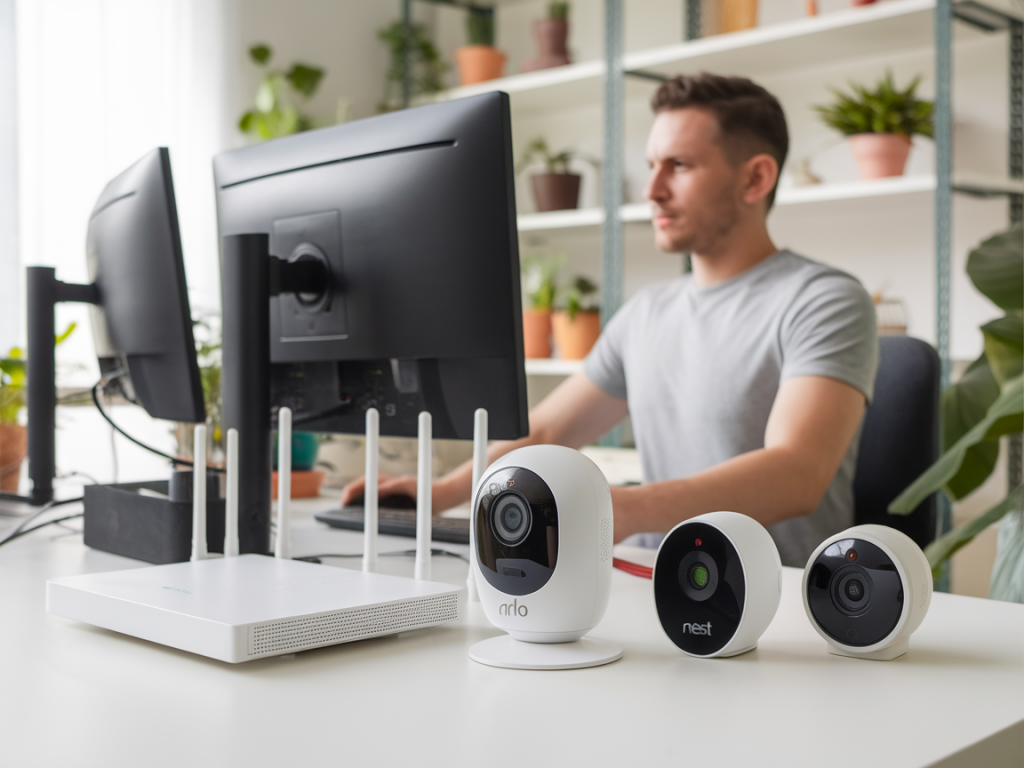
I run a lot of camera tests at Wcetesting Co, and one question keeps coming up: how can you keep local, private backups of your Arlo and Nest cameras without paying for cloud subscriptions? I’ve worked through this by combining honest checks on what each vendor actually allows with practical local recording setups that respect privacy, bandwidth, and budget. Below I walk through realistic options, limitations you should expect, and a step-by-step approach to set up local RTSP or equivalent local backups for these ecosystems.
What to expect from Arlo and Nest (real talk)
Before we dive into how-to steps, you need to know what each brand permits out of the box.
Arlo: Some Arlo systems (older Arlo Pro 2 with a SmartHub or the Arlo Q) can be made accessible via local streaming in specific setups. However, Arlo’s newer cloud-first ecosystem and subscription model means many cameras are designed to rely on Arlo cloud services. That limits direct RTSP access on many recent models.
Nest / Google Nest: Google Nest consumer cameras (Nest Cam Indoor/Outdoor, Nest Hello) historically did not offer official RTSP streams. Google moved much of the functionality behind the Nest API (Smart Device Management API) and cloud services. While you can access live streams and event clips through integrations (e.g., Home Assistant using Google’s API), there is no universal, officially supported RTSP output for most Nest cameras.
Bottom line: if you want true local RTSP streams for easy NVR consumption, Arlo and Nest may not be the simplest path. There are still practical workarounds, which I’ll detail next.
Two practical strategies
Use native RTSP-capable cameras or swap problem devices for RTSP-friendly models (recommended).Use a bridge/proxy or local integration (Home Assistant, Frigate, Blue Iris) to pull streams from cloud-enabled cameras and save them locally.I prefer strategy 1 when I can — it’s simpler, more reliable, and keeps data local. Strategy 2 works when you must keep existing Arlo/Nest hardware but accept extra complexity and occasional cloud-dependency.
What you’ll need
A local recording device: options include Synology NAS (Surveillance Station), a Windows PC with Blue Iris, a Raspberry Pi / small server running Frigate or MotionEye, or a dedicated NVR.RTSP-capable cameras (Reolink, Amcrest, Hikvision, Dahua, Wyze with RTSP firmware) or cameras that integrate nicely with Home Assistant.Network gear: reliable LAN, optional PoE switch for PoE cameras, router with VLAN support if you want to isolate cameras.Storage: plan for continuous vs motion-only recording. Example: 1080p@15–25fps needs ~10–20 GB per camera per day for continuous; motion-only drastically reduces that.Basic familiarity with Docker, Home Assistant, or the NVR software you choose.Step-by-step: Local RTSP backups (preferred path — RTSP cameras)
Choose RTSP cameras: pick models that offer stable RTSP URLs. Reolink, Reolink PoE, Amcrest, and many ONVIF cameras are good. Wyze can run RTSP firmware for lower cost.Set static IPs: assign static IPs or DHCP reservations on your router for every camera and the recording device. This avoids broken streams if IPs change.Set up your NVR software:- Synology NAS: install Surveillance Station, add camera by entering the RTSP URL (rtsp://username:password@camera-ip:554/stream).- Blue Iris (Windows): add camera -> Network IP -> choose RTSP substream/mainstream, set credentials, and test.- Frigate (Docker on a Raspberry Pi/NUC): define cameras and RTSP URLs in frigate.yml, configure detectors (optional), and point recording paths to an attached HDD.Configure recording rules: motion-based recording is most storage-efficient. If your camera/NVR supports motion events, use these to trigger clips. Frigate offers object detection which reduces false positives.Retention and rotation: set a retention period (7–30 days depending on storage). Many NVRs support automatic deletion or overwrite once storage is full.Secure local access: disable default admin/admin, use strong passwords, and avoid exposing your NVR to the internet unless you absolutely need remote access. If remote access is required, use a VPN or SSH tunnel rather than port forwarding.Step-by-step: If you must keep Arlo/Nest hardware
These approaches involve more complexity and occasionally rely on cloud APIs or unofficial methods. I use them only when replacing cameras isn’t an option.
Home Assistant as a local bridge:- Install Home Assistant on a dedicated device (Raspberry Pi, VM, Docker).- For Arlo: install the Arlo integration (community or official). Note that some integrations require your Arlo account credentials and may use cloud APIs to retrieve streams. Home Assistant can pull live streams and then you can configure recorder components to save clips locally (media folder) or push clips to an NVR.- For Nest: use the official Google SDM API integration (requires setting up a Google Cloud project and linking your Nest account). This gives Home Assistant the ability to fetch live streams and event clips; you can configure Home Assistant to record these streams to local storage when motion is detected.Use Frigate/Blue Iris as recorder: point Frigate or Blue Iris at the Home Assistant stream endpoints (sometimes available via ffmpeg input) and let them handle recording. This adds some latency but keeps recordings local.RTSP proxies and community tools: there are community scripts that proxy cloud streams into an RTSP endpoint locally. These are fragile, can break with vendor API changes, and sometimes violate terms of service — I only recommend them for lab experiments, not mission-critical security setups.Testing and troubleshooting
Validate RTSP URL with VLC first: open network stream and confirm video.If you get authorization errors, double-check credentials and camera firmware compatibility. Some cameras use different URL paths for mainstream vs substream.If motion recordings don’t trigger, verify that the motion sensor is enabled on the camera and that the NVR is set to use the motion event rather than continuous recording.Watch CPU/IO on your recorder: object detection (Frigate) is CPU/GPU heavy. Use a proper NPU/GPU or offload detection to a more capable box.Security and privacy notes
Keep your camera traffic on your LAN using VLANs if possible, use strong unique passwords, and avoid exposing camera ports directly to the internet. For remote access, a VPN into your network is far safer than opening RTSP or NVR ports.
If you want, I can look at the specific Arlo or Nest model you own and tell you whether it's likely to work with a local recorder, or recommend replacement cameras that make local RTSP backups straightforward and reliable. At Wcetesting Co I test many of the recommended RTSP-friendly cameras in real-world setups, so I can point you to models that balance image quality, cost, and local control.